Balances
Details about various balances available and how you can add funds and maintain them from the Axis Dashboard.
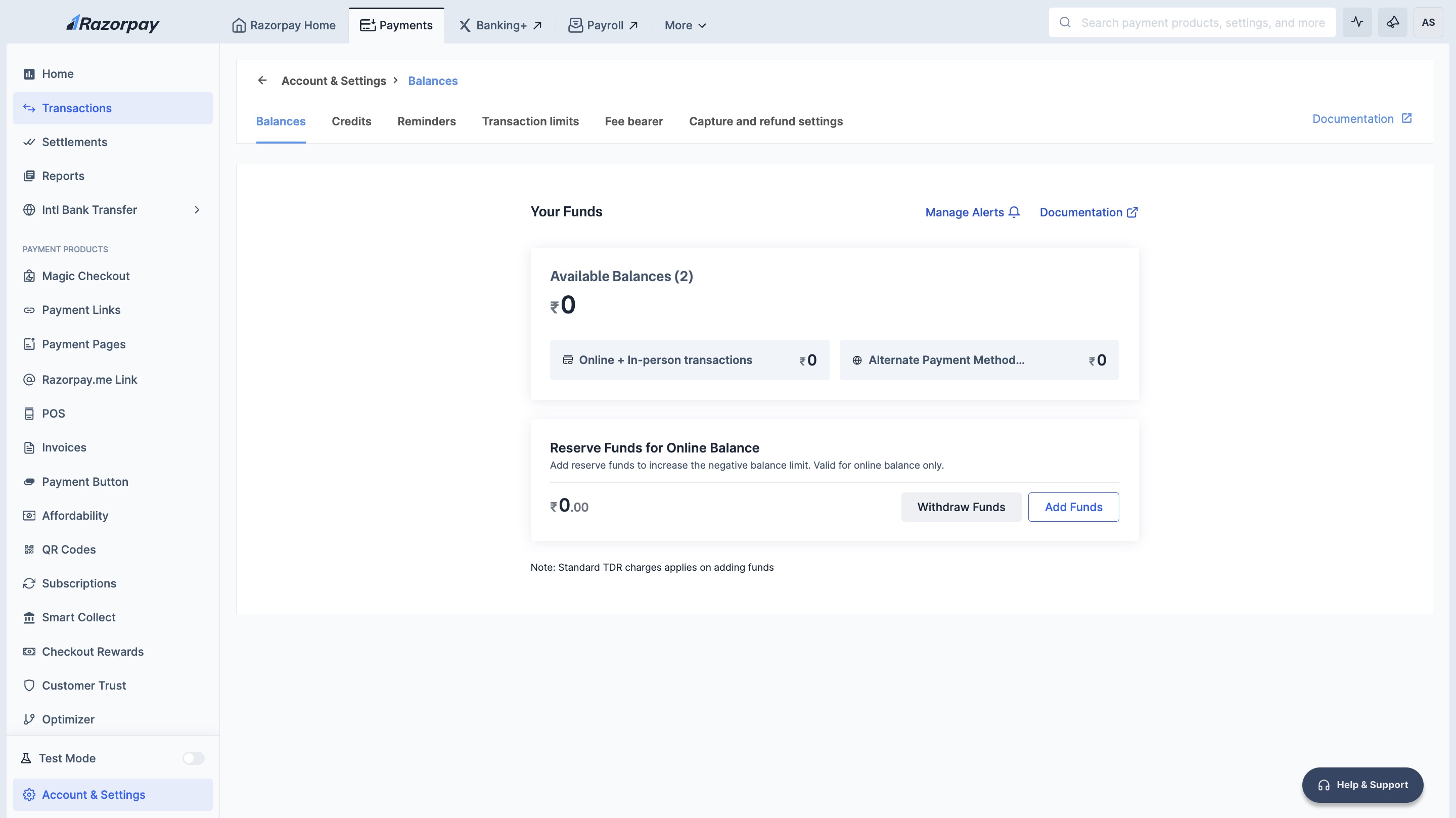
There are two types of balances available on the Dashboard:
After the deduction of fees and tax, the payments received from your customers are added to your Available Balance.
- This accumulated amount is settled to your bank account as per your settlement cycle.
- We use your available balance to process chargebacks, refunds to your customers and settlements to your linked accounts.
Always maintain sufficient available balance in your account to ensure your transactions do not fail.
Your available balance is now segregated based on the channel type that is, Online (Domestic transactions + International Cards), In-person and International.
Watch Out!
- Refunds processed using your available balance incur no extra charges. We only deduct the refund amount.
- Fees and taxes from the original transaction are not reversed in you refund. As a result, you refund amount can be lesser than the original transaction.
Negative available balance is when your available balance becomes less than zero.
- If opening balance is ₹0, your negative balance is -₹500 (due to 0-500).
- If opening balance is ₹300, your negative balance is -₹200 (due to 300-500).
Negative balance impacts your customer satisfaction. Ensure you maintain sufficient available balance or add Reserve Balance.
Reserve Balance allows you to process refunds or settlements to linked accounts when you do not have a sufficient available balance/have
. The amount you add as the reserve balance becomes the maximum negative limit for your account. Your transactions up to this limit do not fail.When your available balance becomes 0, we use your reserve balance to process transactions up to this limit, that is, ₹1000. Your transactions will not fail.
- To increase your negative balance limit, you can from the Dashboard. You will have to transfer funds to your reserve balance only once in most cases.
- You can add funds to Reserve Balance using the Dashboard through either or .
Watch Out!
Add funds only through the settlement account registered with us.
Let us say you have an available balance of ₹0 and a reserve balance of ₹1,000
You can add funds to Reserve balance through UPI or bank transfer payment methods.
To add funds to Reserve balance using UPI:
- Log in to the Dashboard.
- Click Account & Settings in the left navigation.
- Click Balances under Payments and refunds section.
- Click Add Funds.
- Select UPI.
- Enter the description and amount to be added.
- Click Add Credits.
- Enter the email and contact number on the checkout pop-up page and click Proceed.
- Select UPI, enter UPI ID or scan the QR, click Pay Now and complete the payment.
Your Reserve balance is updated.
Handy Tips
It may take 2-3 hours for the Reserve balance to reflect in your Axis Account.