Frequently Asked Questions (FAQs)
Find answers to frequently asked questions about Axis Dashboard.
You can change your login/registered email ID from Account & Settings on the Dashboard.
To change your password, enter your email ID on the Forgot Password page and complete the password reset process.
Follow these steps to change the phone number:
- Log in to the Dashboard and navigate to Account & Settings.
- Click the edit icon next to the Phone number field.
- Enter the OTP sent to your registered email address and click Confirm.
- Enter the new phone number and click Update.
You can add the email ID from your Dashboard by following these steps:
- Log in to the Dashboard and navigate to Account & Settings.
- Click Email under the Notification settings section.
- Add the email ID in the Email Notifications.
- Click Save Changes.
To change your account details, raise a request with our
.To change your business website URL, navigate to Account & Settings → Business website details and click the edit icon in the Business Website/App details field. Know more about how to
.You can request a change in bank account details from the Dashboard. Watch the video explaining
.- Log in to the Dashboard and navigate to Account & Settings.
- Go to Bank account details.
- Click Change bank account.
- Enter the OTP sent to your registered mobile device on the 2-Step Verification pop-up page.
- On the Change Bank Account Details pop-up page, add bank details such as branch IFSC, bank account number, and beneficiary name and upload your business' bank statement or a cancelled cheque.
- Click Save.
For security reasons, only the Owner or Admin of the account will be able to access this option from the Dashboard. After the request is placed, the beneficiary details will be validated and updated within one business day.
You can change the billing label on the automated emails sent by us to your customers.
Handy Tips
The billing label must match your registered business name or the domain name.
-
If you are a registered business, you can use the Update Brand Name feature on the Dashboard to update the business name.
-
If you are an individual, for example, a freelancer, raise a request with our
.
You can use the
feature on the Dashboard to update the GST details.When you submit a new or updated website domain for approval, the process involves two main stages:
- Bank Verification System (BVS) Checks: These initial automated checks typically take 3–5 minutes.
- Agent Resolution/Final Approval: Once the BVS checks are complete and the workflow is created, it takes an agent approximately 24–48 hours for final review and resolution.
The approval status will be updated on your Razorpay Dashboard.
If your website verification request has been pending for an extended period, contact Razorpay support with the following details:
- Your Razorpay account id/Merchant id.
- Website URL submitted for verification.
- Date of submission.
The support team will review your request and expedite the verification process. Once approved, you will receive confirmation and can proceed with generating API keys for integration.
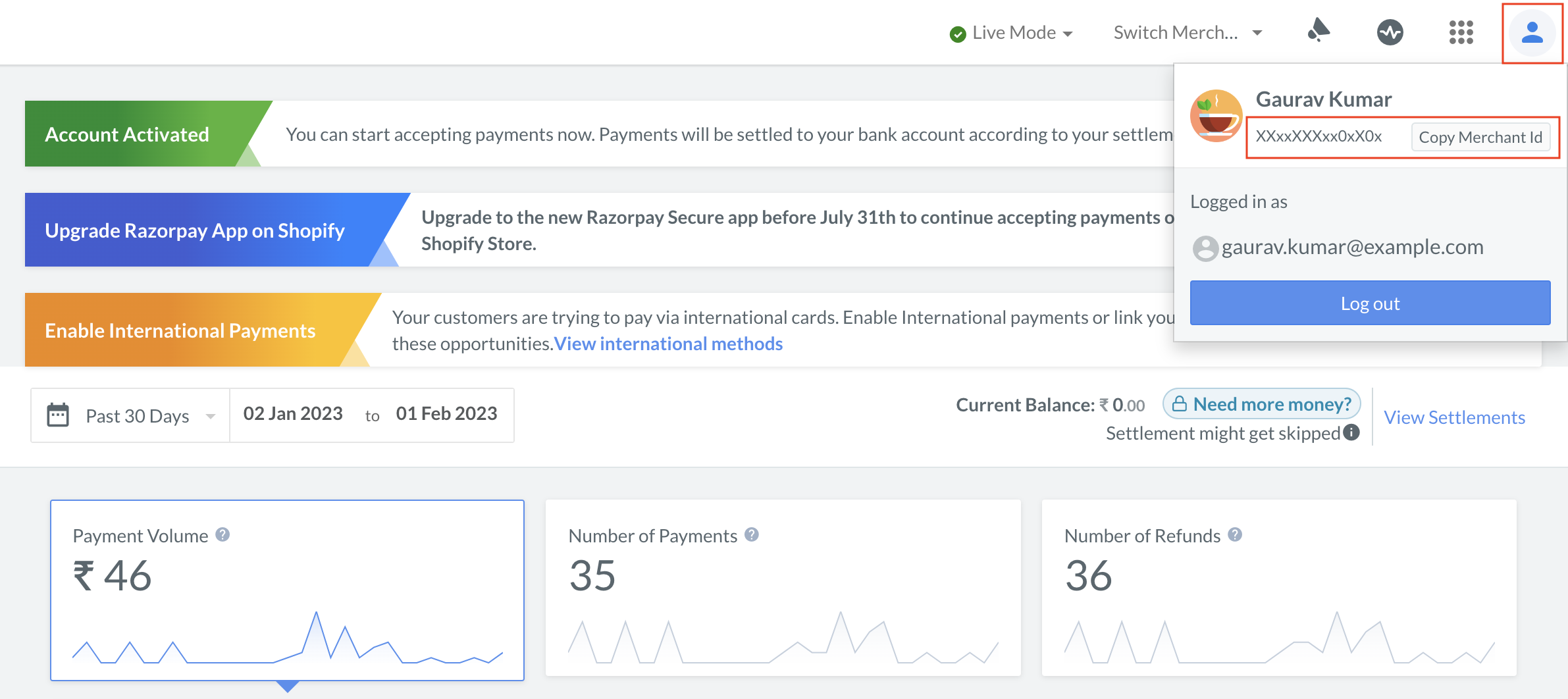
Axis Dashboard is a user interface for you to configure and operate your Axis account. The Dashboard home page provides all information about the activity on your account.
It includes a wide range of analytics and real-time charts that provide insight into the business performance and any action you may need to take, such as unanswered disputes or auto-refunds.
No, a GST certificate is not mandatory for businesses with an annual turnover below ₹20 lakhs.
To add your Razorpay account to your sub-domain, raise a request with our
.You can integrate Razorpay with your website or app using SDKs and plugins. You can also accept payments without integrations using our range of
.Webhooks enable a web application to send information to another application in real-time when a specific event happens after integration. Use Razorpay Webhooks to configure and receive notifications when a specific event occurs. Know more about
.Log in to the Dashboard and
to close your account.Before integrating, you must register your additional website or app details on the Dashboard. You can add one main website and up to five additional websites.
Follow these steps to register your second website:
- Log in to the Dashboard.
- Navigate to Account & Settings → Business website detail.
- Click Add additional website/app details.
Know more about the complete process, required documentation (for example, policy links, reason for adding) and review time by referring to the
.All of your transaction data can be exported as reports in CSV format and can be mailed to yourself. You can also download a monthly or a daily report from the Reports Section of the Dashboard.
To apply for your TDS reimbursement, raise a request with our
, sharing your merchant ID and TDS certificate.You can switch between the Test and Live modes using the drop-down option at the top of the Dashboard.
3. I cannot generate Live mode API keys even though my account is activated. How do I generate the API keys?
You can generate the Live mode API keys by providing your live website details. Follow these steps:
- Log in to the Dashboard.
- Navigate to Account & Settings.
- In the Business Website/App details field, click Add Website/App URL for Full Access. Once you successfully add the URL, you can able to generate the API keys in live mode.
- Enter your website URL and click Add Details.
- Our team will review your website/app URL details.
- After our team's review, your website details are updated, and you should be able to generate API keys in the live mode.
Chargeback is a refund claim initiated by the customers with their issuer banks. In such cases, the bank starts an official inquiry. Know more about
.Please raise a
and our team will get back to you at the earliest.