Reconcile Shopify Orders on Dashboard
Reconcile payments made on your Shopify store via Dashboard.
Reconciling payments made on your Shopify store with the data available on your Dashboard is a simple process.
Follow the steps below to reconcile a payment:
- Log in to the and open the Orders tab. Click the drop-down to view the 1 Razorpay payment details.
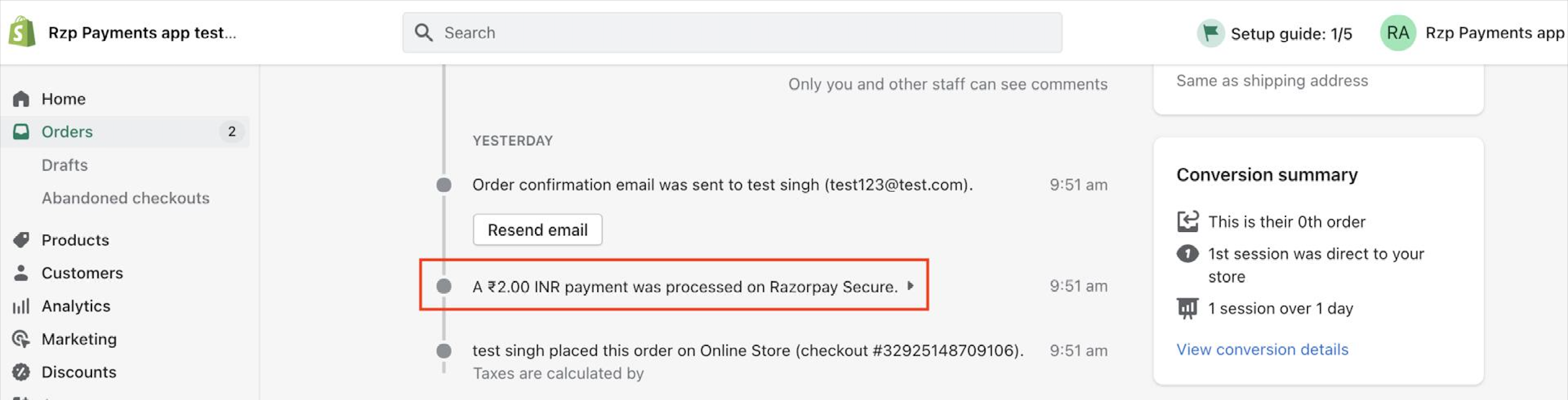
- Make a note of the payment id.
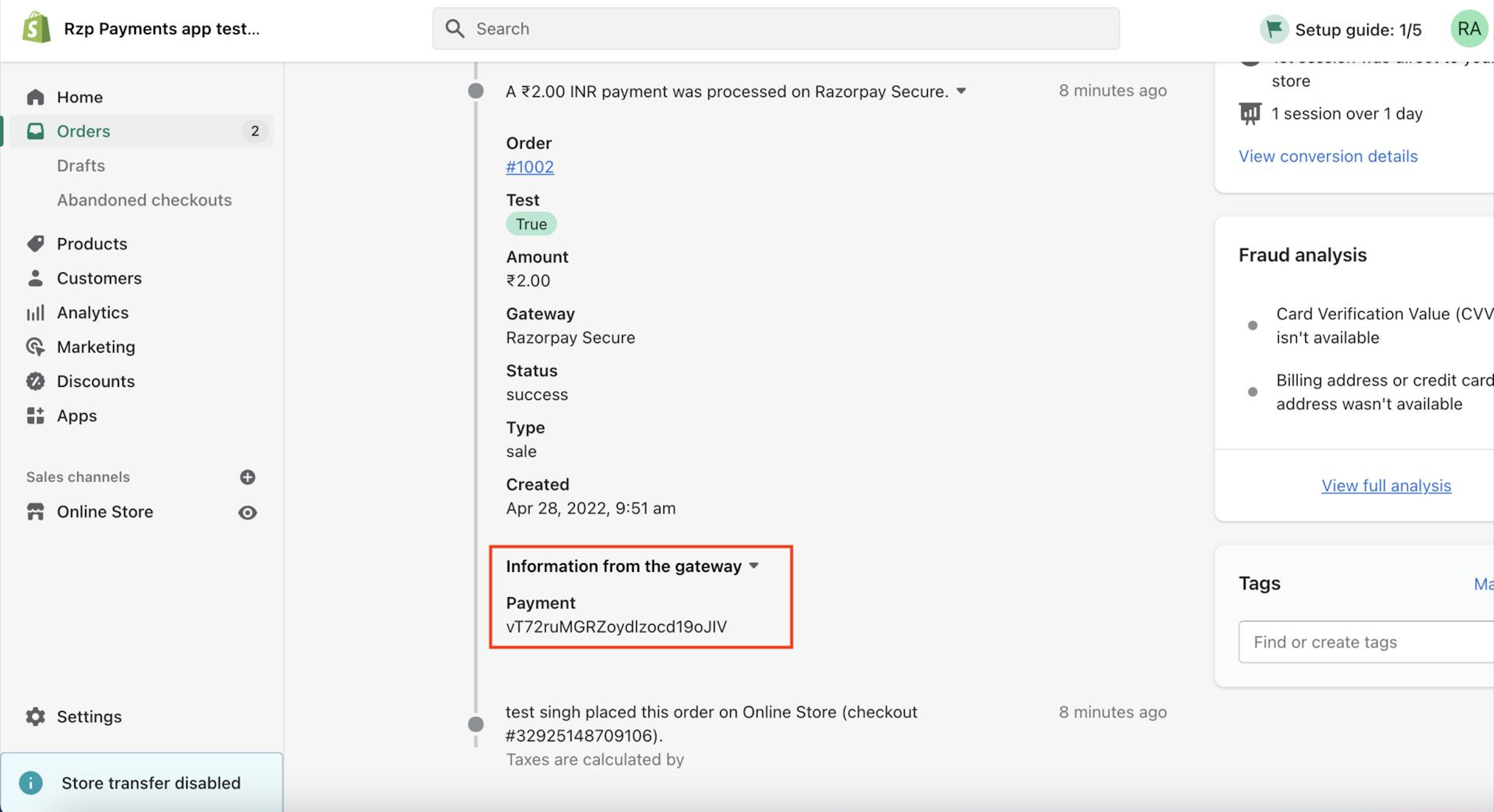
- Log in to the Dashboard and navigate to Transactions → Payments. The payment appears on the list of payments. The payment id appears under the Order Id column.
- Match the payment id (on the Shopify Dashboard) with the Order id (on the Razorpay Dashboard) to map the payments.
Follow the steps below to reconcile multiple payments:
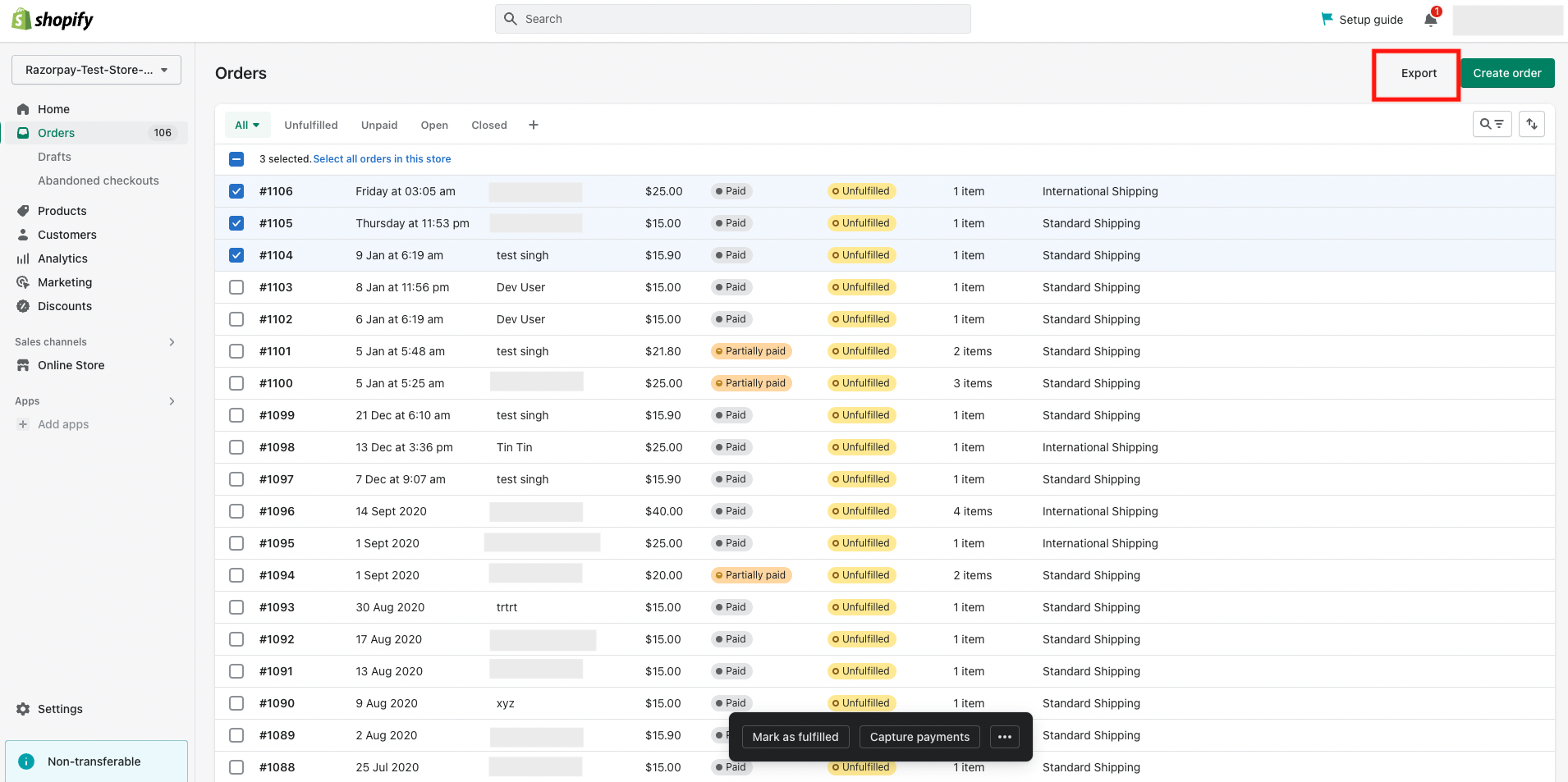
- Log in to the and open the Orders tab.
- Select the required orders or time period.
- Click Export to export the data. The Payment References column in the file contains the payment ids.
- Log in to the Dashboard and navigate to Reports.
- Select Shopify Payments Report in the Select Report Type drop-down.
- Select the period and format.
- Click Generate Report.
- Once the report is generated, click Download. The Order ID column in the file contains the payment ids.
- Match the Payment References column in the Shopify export with the Order ID column in the Shopify Payments Report to map the payments.
ON THIS PAGE