Tutorial - How to Create Offers
Create Offers from the Axis Dashboard using an example.
Let us create an offer from the Dashboard using an example.
Assume that you are the manager of Tea Factory, a beverage company that sells packaged teabags using your website. You want to provide discounts on online purchases to attract customers and increase sales.
You want to create a Diwali Offer with the following settings:
Let us create this offer.
- Log in to the .
- Navigate to Offers and click Create New Offer.
- The Create an Offer wizard appears with these four tabs. You must enter details in all these tabs for the offer to be created:
You can review the Offer configurations at the end, in the
tab.In the Description tab, enter the following details. All the fields are mandatory.
Offer Name- Enter the name of the offer. For example,Diwali Dhamaka. This will appear on the Checkout.Display Text- Enter a meaningful description for the Offer. For example,10% discount on netbanking payments. This will appear on the Checkout.Terms- Enter terms and conditions that are applicable for this Offer.Offer Type- Select the type of the Offer that you want to create, that is, Instant. This means that the Offer will be applied instantly. The customer will only pay the discounted amount when making the payment.- Click Next.
In the Discount Type tab, enter the discount details that should be applied to the Offer.
Discount Type- Select the type of discount that should be applied to the Offer. In this case, it is Percentage.Minimum Order amount- Enter the minimum bill amount for which the Offer can be applied. Enter400.Discount Worth- The percentage by which the original price should be reduced. Enter10.Maximum Discount- The maximum amount that can be deducted from the bill amount. Enter500.
- Click Next.
In the Applicable On tab, enter details of the payment method you want to enable Offers.
Payment Method- Select the payment method to enable offers on. Here, selectNet Banking.Issuer- In case you want to restrict the offer to online payments from a specific bank, select the bank name from the list. Otherwise, do not select any bank. For this example, since the offer is applicable for all blanks, we will not select a bank.- Click Next.
In the Offer Validity tab, set how long the offer should be valid and how you want to handle the payment failure situations:
Starting On- Select the Starts Immediately checkbox for the offer to come into effect immediately. Alternatively, you can select the date and time the created Offer should become active.Expires On- Select the date and time at which the Offer should end. For example,31 Oct 2020at11:59pm.On Payment Failure- Define how to handle payment failure.- Do not allow payment to go through: The payment has failed.
- Allow customer to pay without availing offer: The payment is allowed even though the set validations are not met. However, the Offer is not applied to the bill amount. The customer will be charged the entire order amount. For this example, we will allow payments to go through.
Max Usage- Set the number of times the Offer should be applied across all transactions. For example,100.Show Offer on Checkout- Select this checkbox for the created Offer to be displayed on all Standard Checkout renderences including .- Click Next.
Click the Overview tab to view the summary of the Offer that you just created.
Terms and Conditions- Select the checkbox after you have the read the disclaimer.- Click Create Offer.
By default, all the created Offers will be in enabled state.
You can test the created offer for all Standard Checkout payments, including
, , and so on.Handy Tips
-
You can toggle between Live and Test Modes on your Dashboard. Navigate to the top menu ribbon and click the drop-down icon against Live Mode. Toggle to Test Mode and test the offers enabled.
-
You can make test payments using one of the payment methods at the Checkout. No money is deducted from your account as this is a simulated transaction.
For this example, we will test the offer on a valid Payment Link. Follow the steps given below:
- Select the Payment Link Id you wish to test the created offer from the Dashboard.
- Copy the Payment Link URL and open it in your browser.
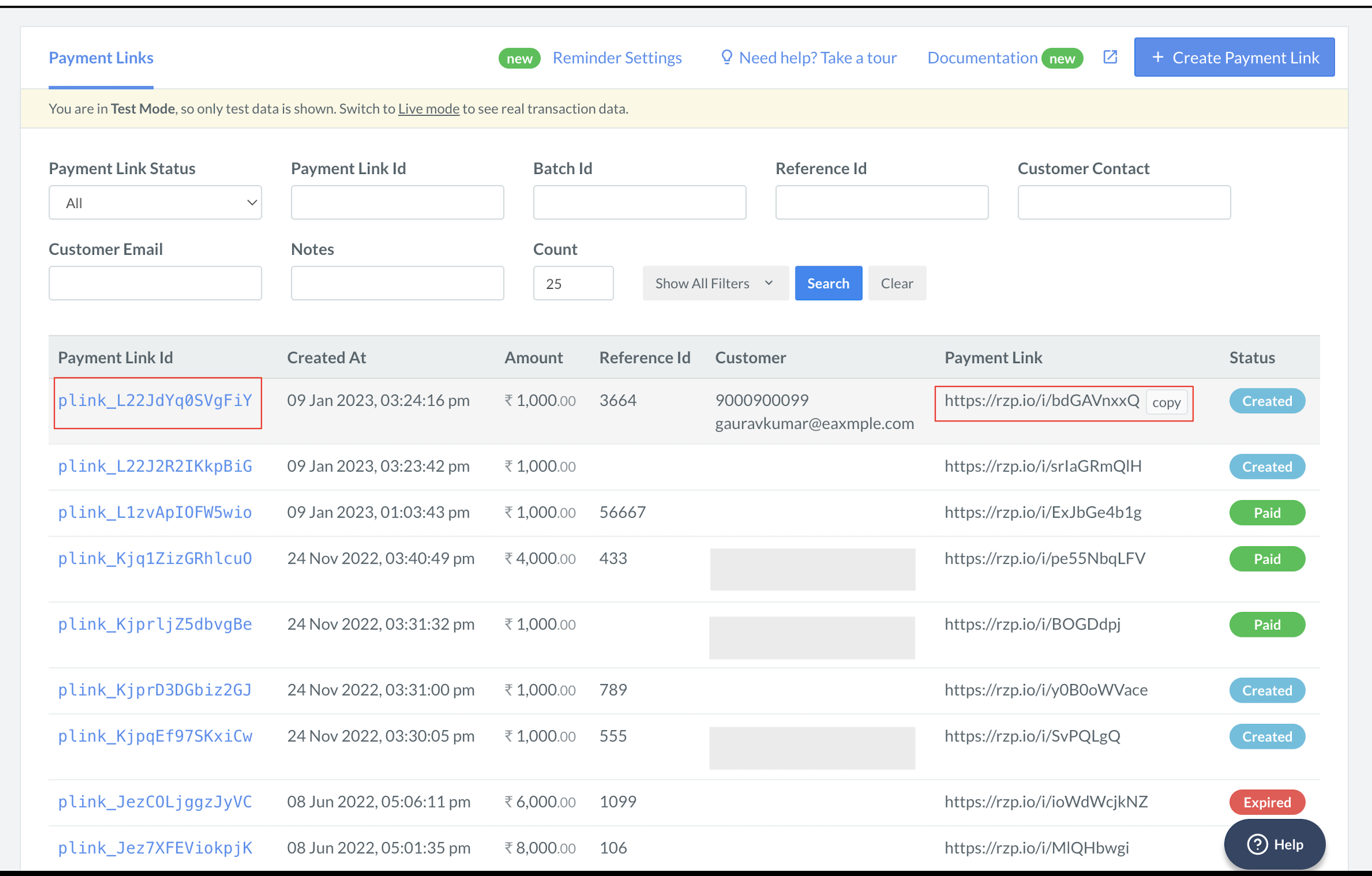
- Enter your contact details and click Proceed. The relevant offers appear upfront on checkout.
- Select the offer you created from the Dashboard and click Apply Offer.
- Select the payment option you created the offer on from the Dashboard. Enter the required and click PAY.
- Select Success or Failure, depending on which flow you wish to test.
- You should see a confirmation message depending on the flow you have selected.
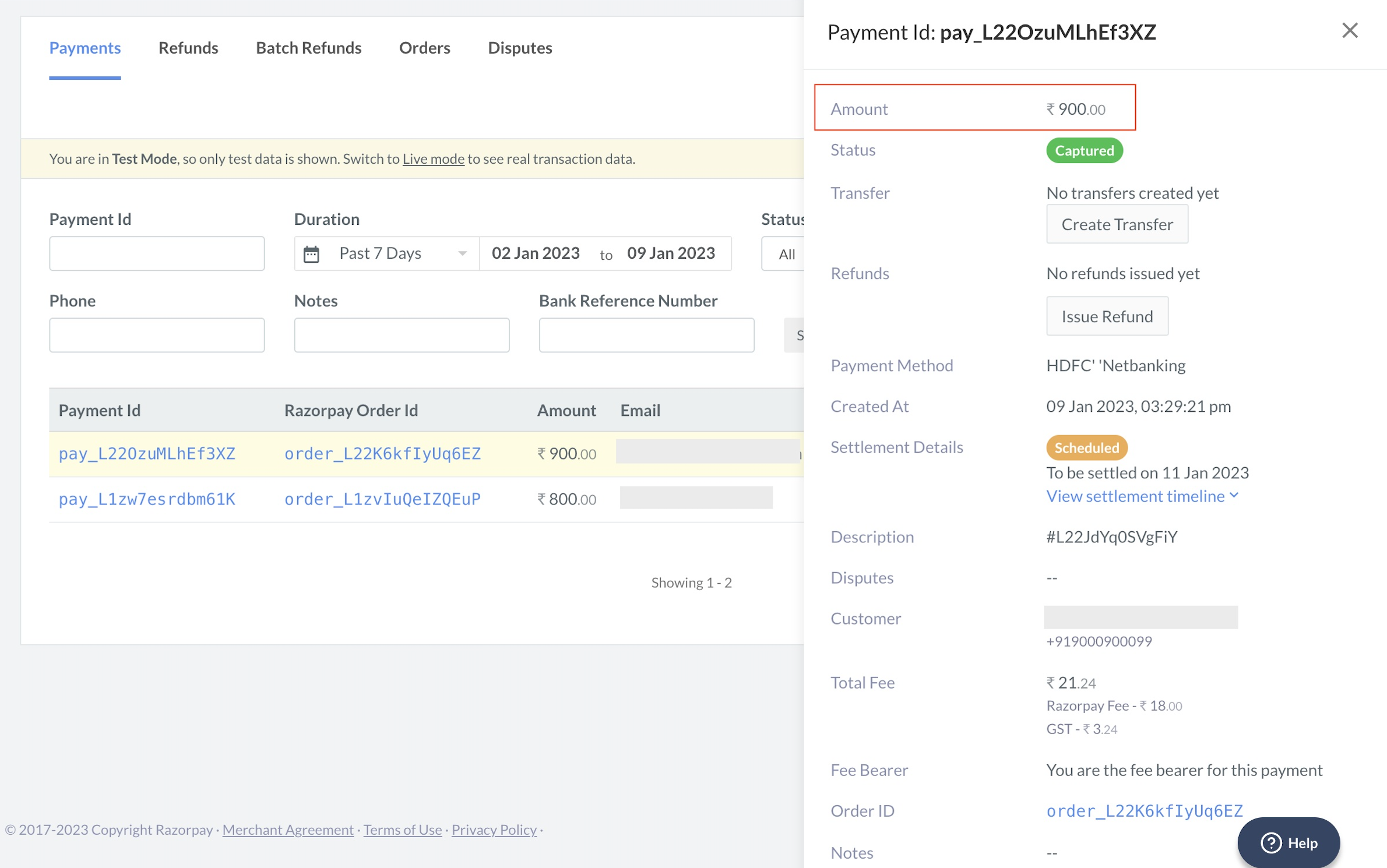
On successful payment, you should have received a discount on your payment. You can verify this by navigating to the Transactions → Payments tab and viewing the payment details.
Now that an Offer is created, you should integrate Offers in Checkout for customers to avail the discounts and make payments.
Know how to integrate Offers in
.