Airpay
Add Airpay as a payment provider on Optimizer.
Airpay is an integrated omnichannel payment processing platform designed for businesses in India, offering solutions for mobile, online and offline transactions. It acts as a payment aggregator, enabling businesses to accept various instruments like cards, UPI and wallets across multiple sales channels.
Follow the steps below to onboard Airpay as a payment provider.
- Ensure you have Optimizer enabled for your Razorpay account. This payment provider is available only with Optimizer.
- To ensure a successful integration, you must complete the following items prior to configuration:
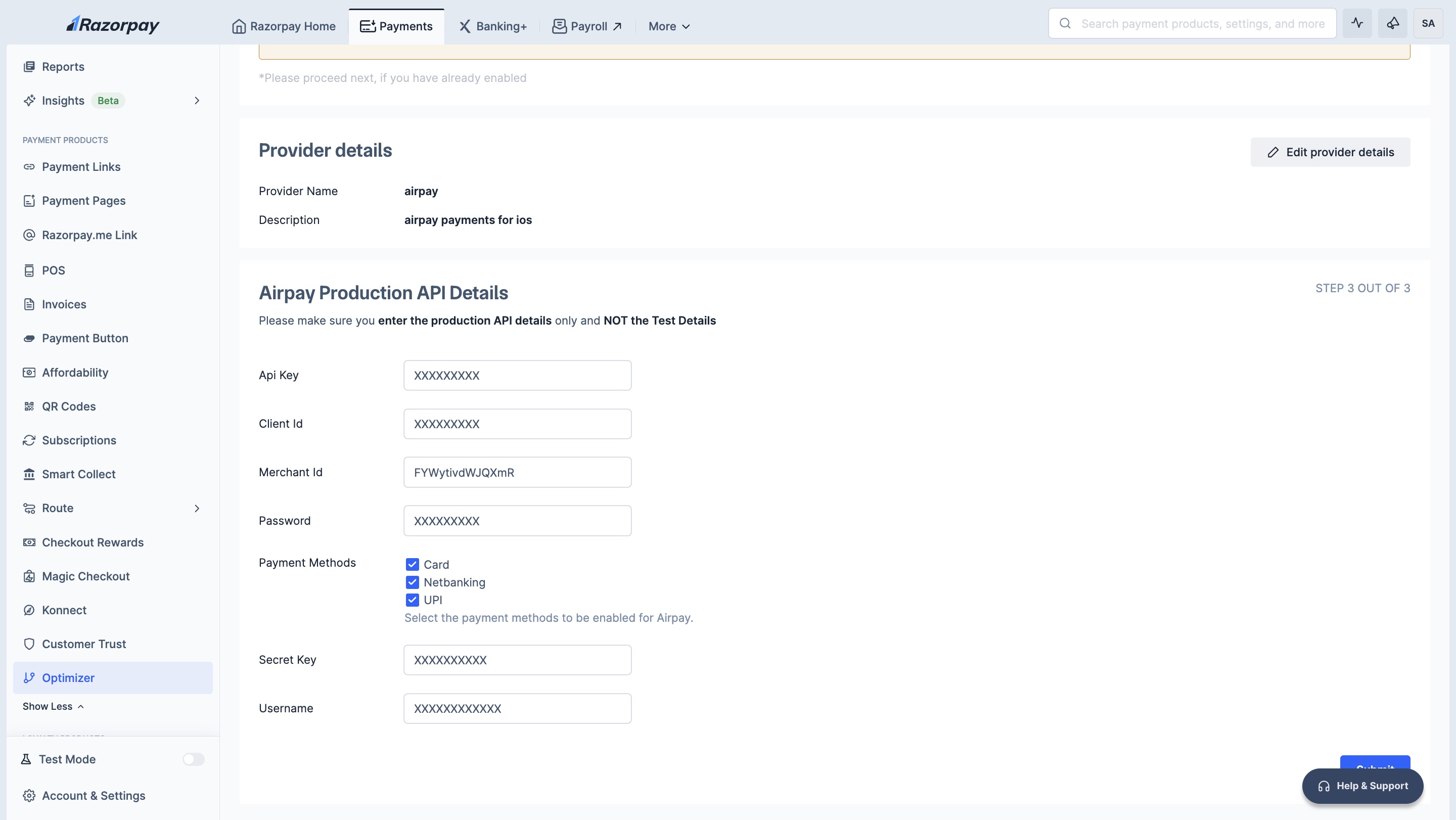
- Procure Credentials: Ensure you have an active account with Airpay and possess the necessary API credentials (for example, Merchant ID, Secret Key, Username and Password).
- Whitelisting: Ensure you have whitelisted the necessary URLs/IP addresses to allow traffic from the Optimizer platform. Please contact Airpay for this.
- UPI Collect is not supported by this integration. You must use an alternative provider to accept these payments (Razorpay is available for Optimizer users). .
Handy Tips
No additional configuration is required on your end for Airpay integration.
- Log in to your Dashboard and select Optimizer.
- Click Payment Provider → Add Provider.
- Navigate to Card, Netbanking, and UPI → Airpay.
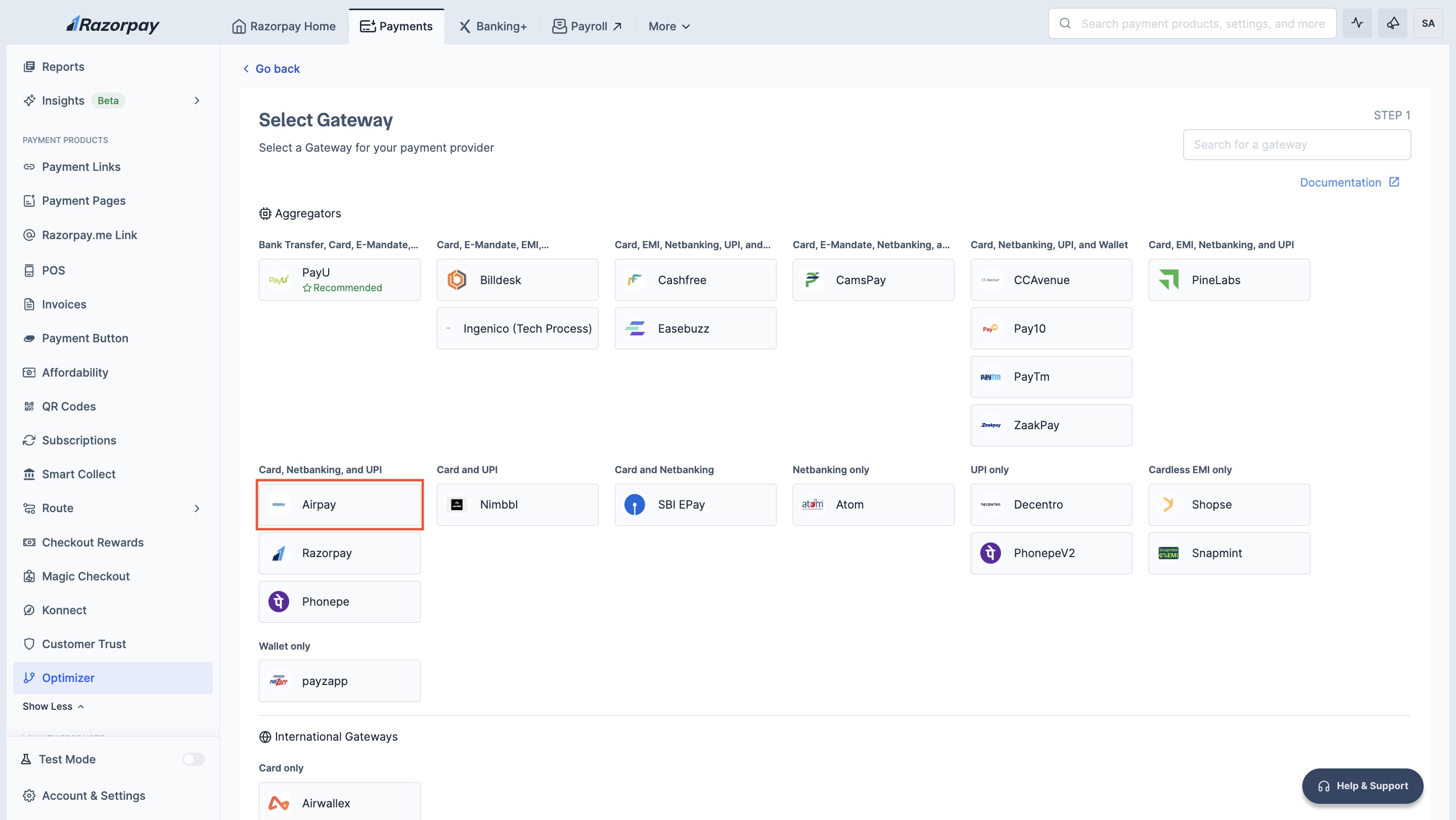
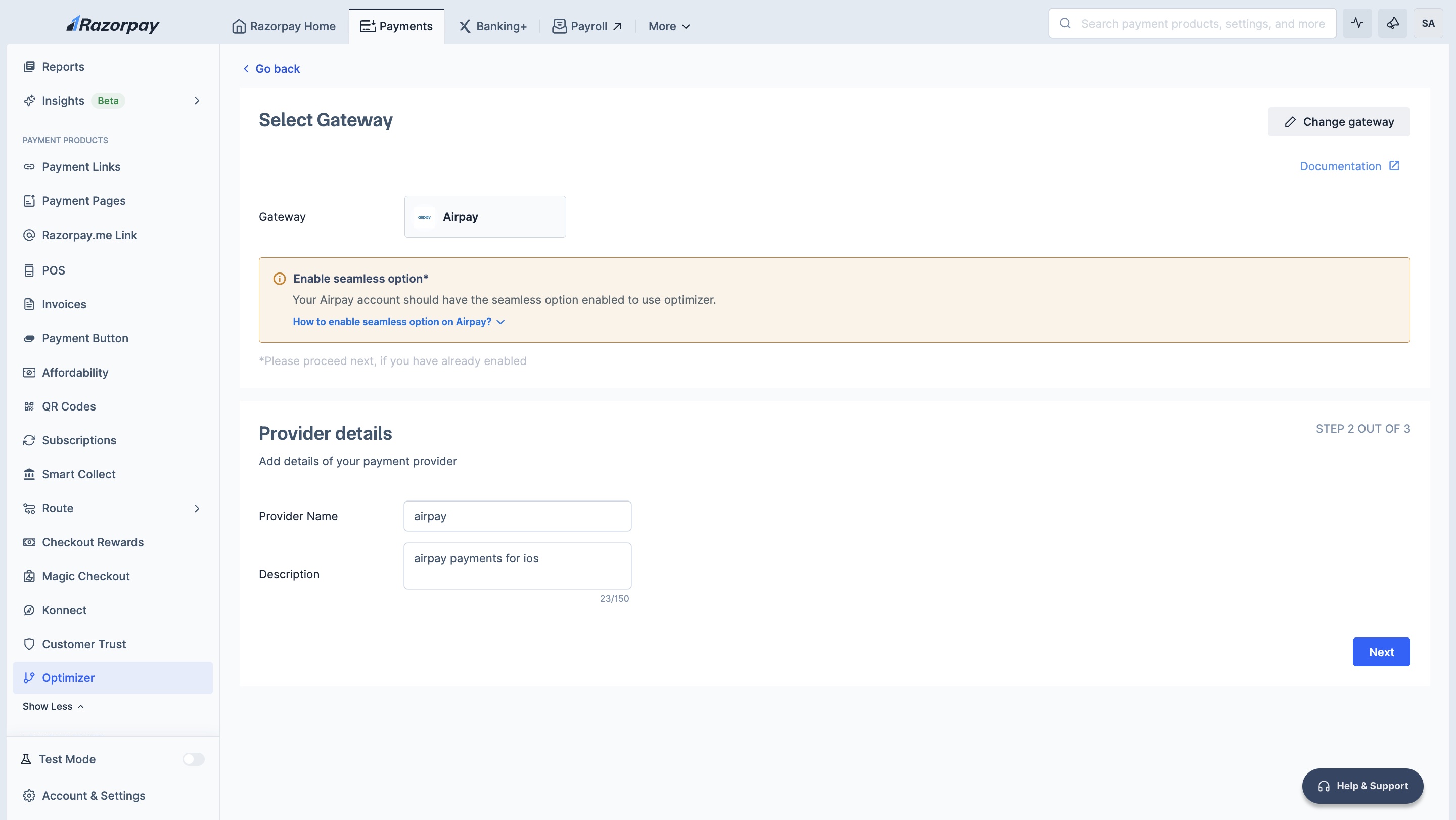
- Enter your Provider Details.
- Add your Airpay Production API Details and click Submit.
Watch Out!
UPI Collect is not supported by this integration. You must use an alternative provider to accept these payments (Razorpay is available for Optimizer users).
.You have successfully added Airpay as a payment provider to Optimizer.
- Log in to your Dashboard and click Optimizer.
- Click + Add New Rule.
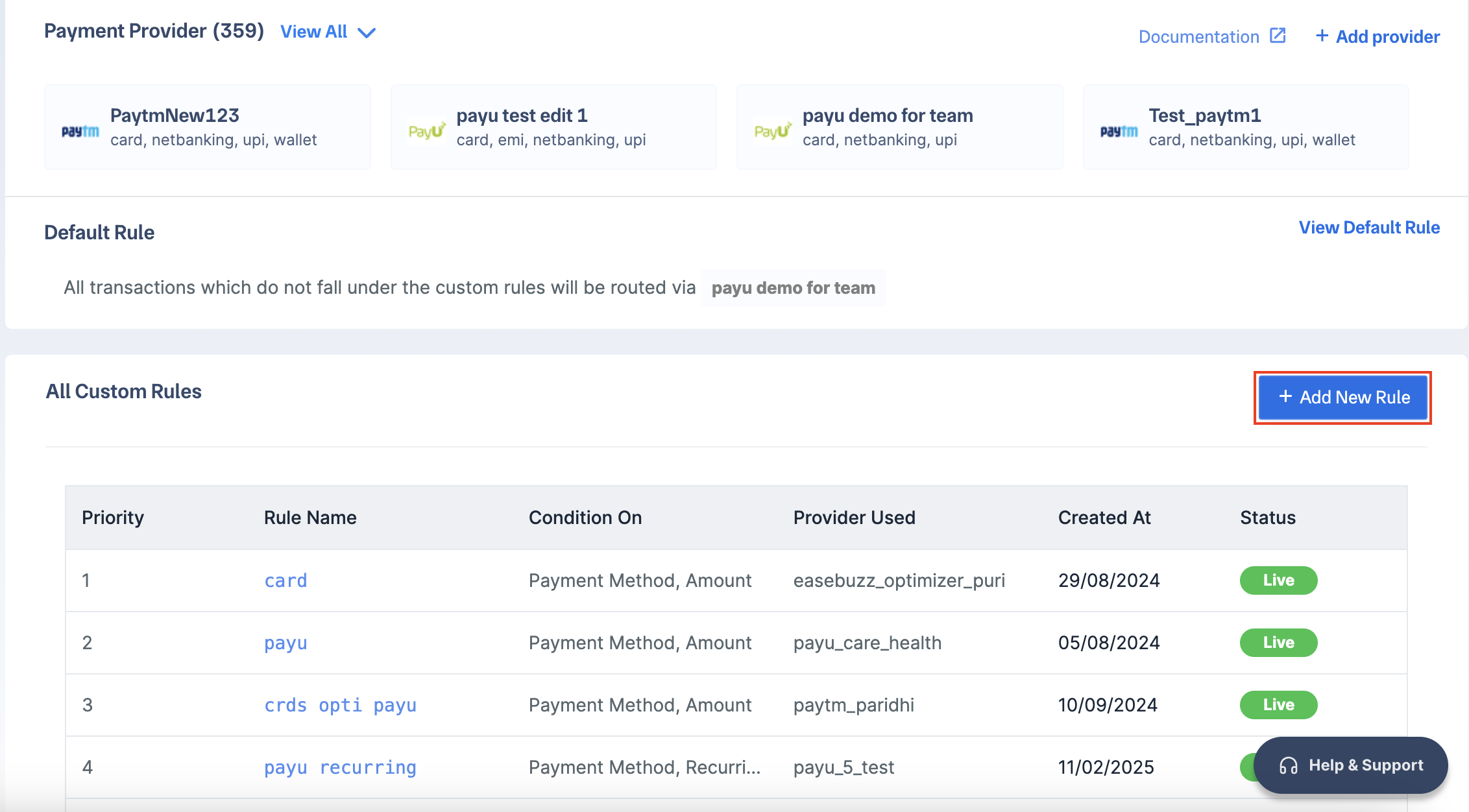
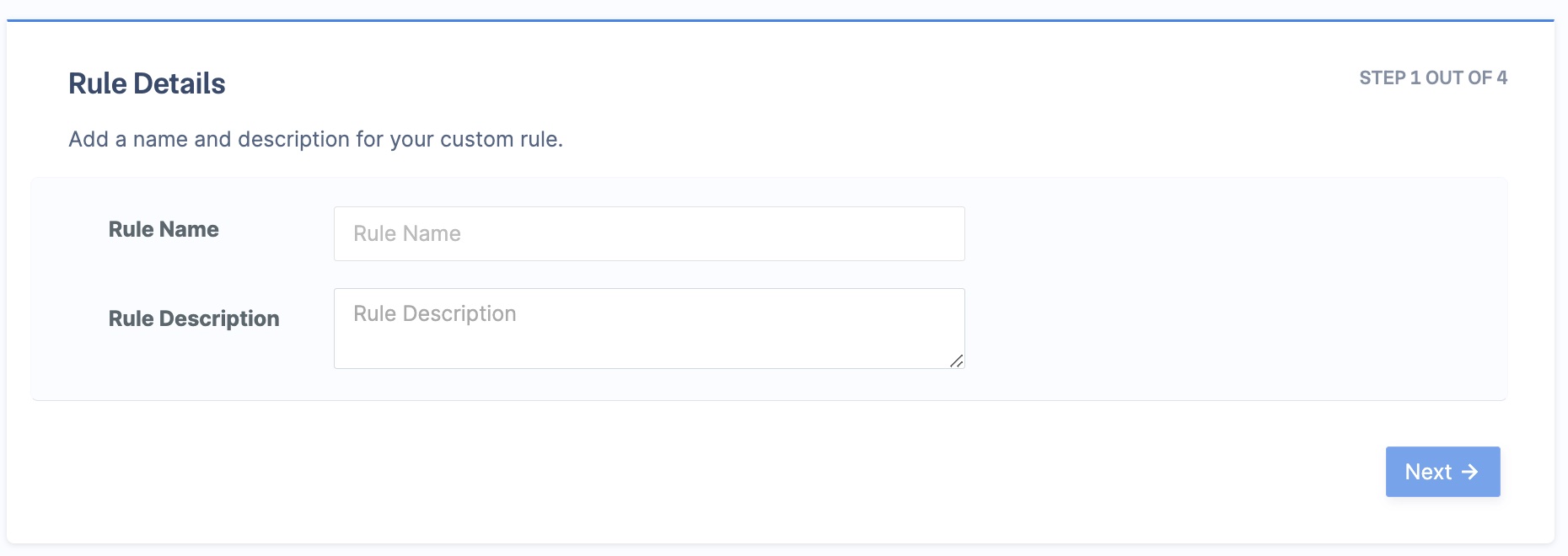
- Enter the Rule Name and Rule Description. Click Next.
- Select the rule conditions and click Next, for example:
- When -
Payment Method. - is -
One Of. Netbanking, Card, UPI Intent.
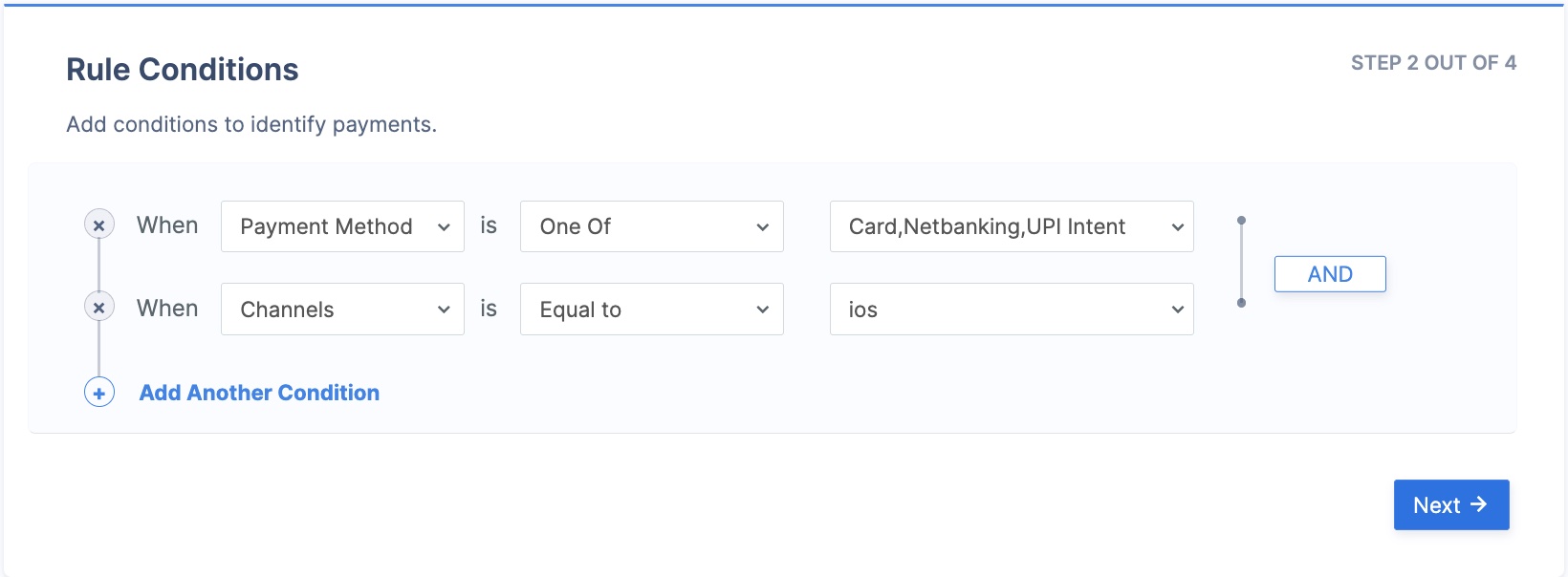
- When -
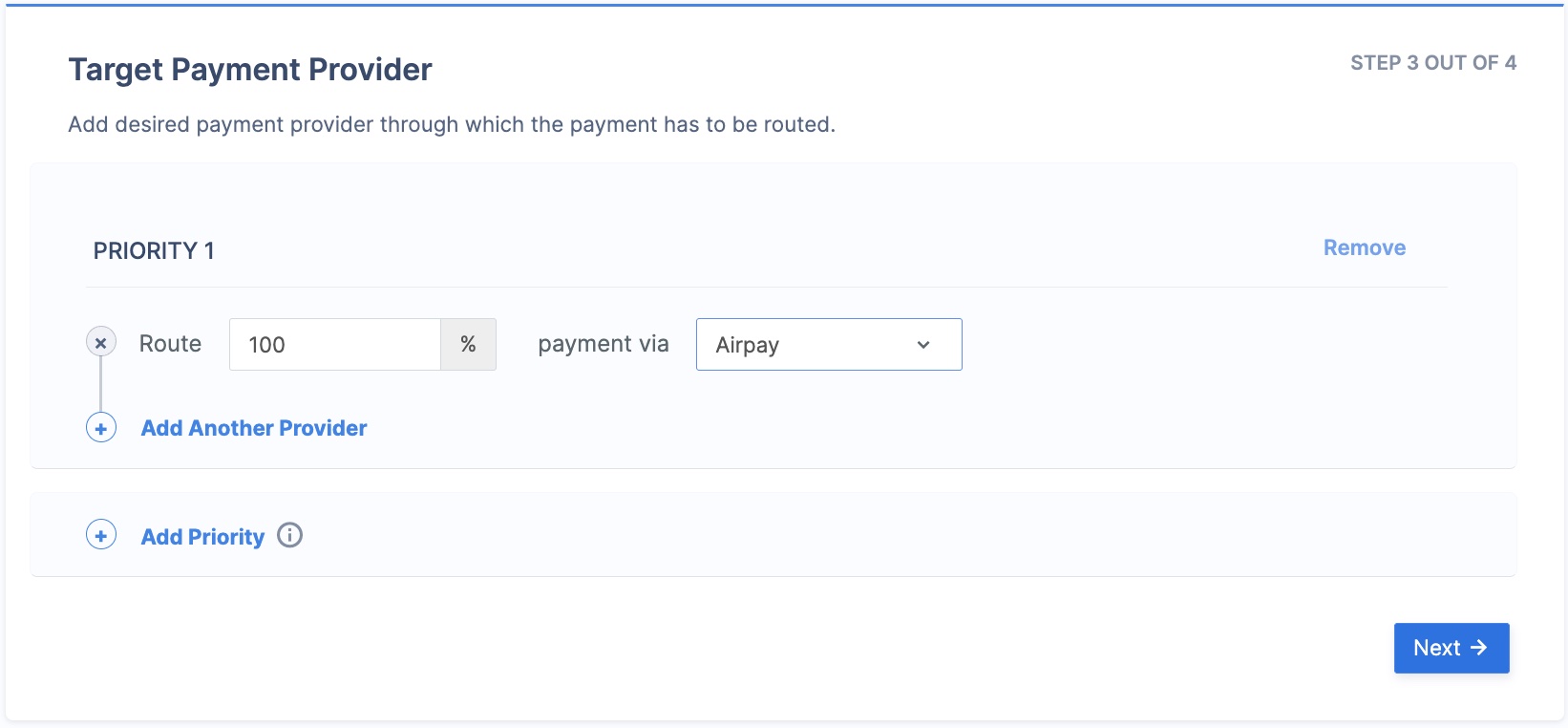
- In the Route field, enter 100, and select Airpay in the payment via field. Click Next.
- Click Publish Rule.
Following this example rule, transactions originating from iOS devices and using Card, Netbanking or UPI payment methods will be routed through Airpay.
You must create routing rules to manage the known limitations of the Airpay integration, routing specific transaction types to an alternative provider.
Airpay integration currently does not support "UPI Collect" requests.
Handy Tips
Create a separate rule for UPI Intent transactions to ensure they are routed to Airpay.
- Log in to your Dashboard and click Optimizer.
- Click + Add New Rule.
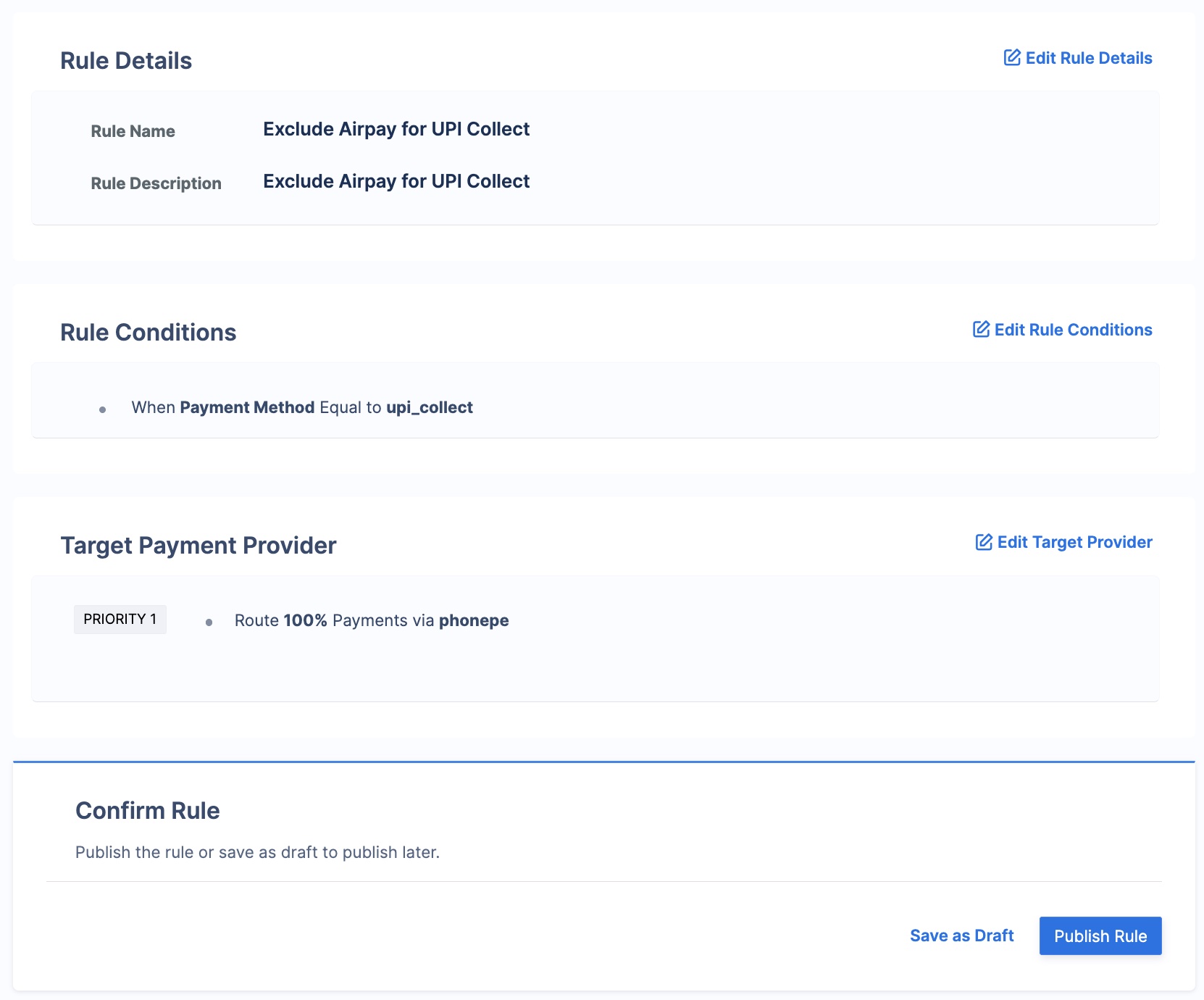
- Enter the Rule Name (for example,
Exclude Airpay for UPI Collect) and Rule Description. Click Next. - Select the rule conditions as follows and click Next:
- When -
Payment Method - is -
Equal to UPI Collect
- When -
- In the Route field, enter 100 and select your [Alternative Gateway Provider] in the payment via field. Click Next.
- Click Publish Rule.
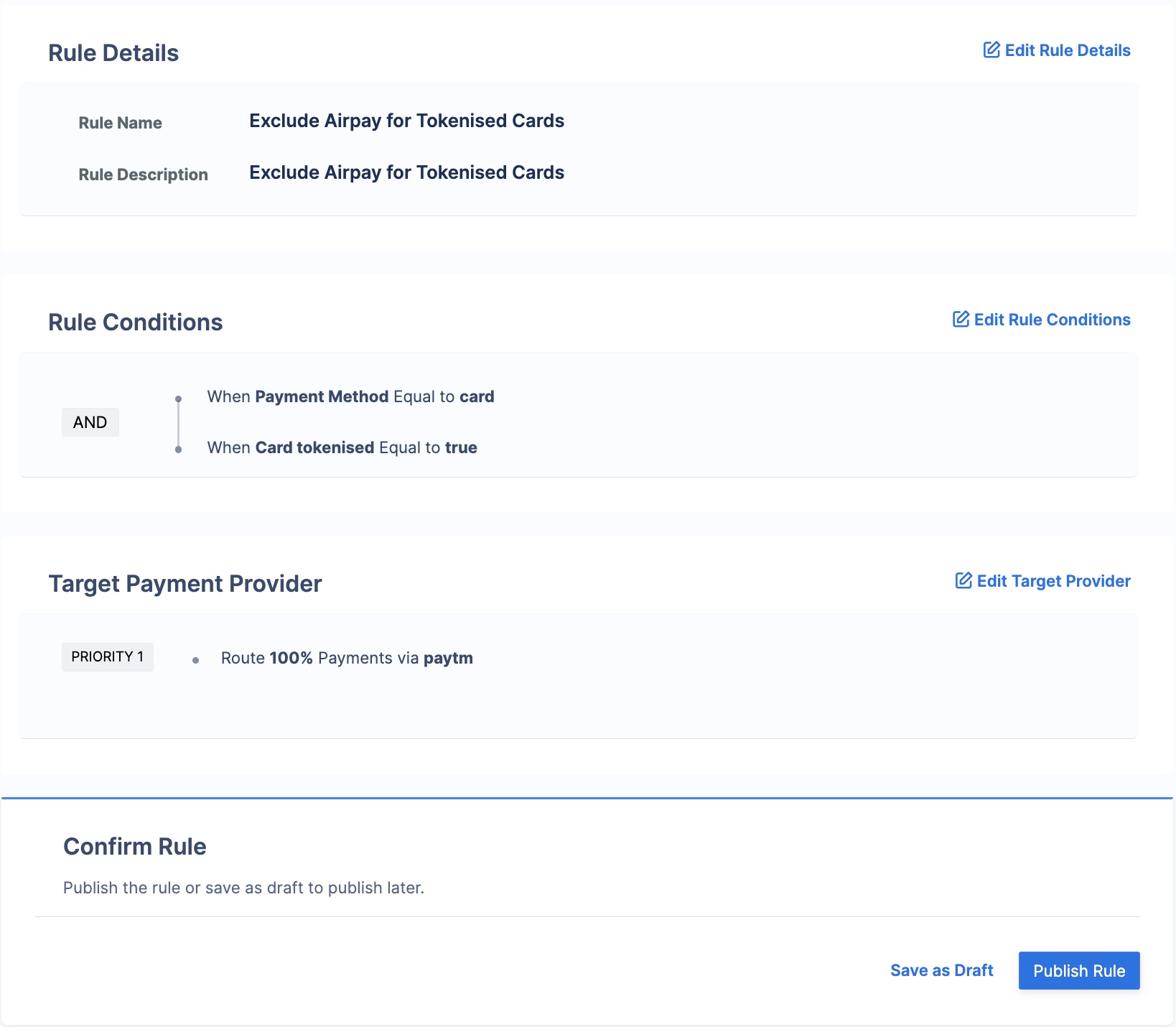
Airpay integration does not support Tokenised Card payments.
- Log in to your Dashboard and click Optimizer.
- Click + Add New Rule.
- Enter the Rule Name (for example,
Exclude Airpay for Tokenised Cards) and Rule Description. Click Next. - Select the rule conditions as follows:
- Condition 1:
- When -
Payment Method - is -
Equal to Card
- When -
- AND (Add another condition)
- Condition 2:
- When -
Card Tokenised - is -
Equal to True
- When -
- Condition 1:
- Click Next.
- In the Route field, enter 100 and select your [Alternative Gateway Provider] in the payment via field. Click Next.
- Click Publish Rule.
Please note these best practices before routing all or some of your traffic to a new gateway via Optimizer:
Rules set up in the Razorpay Dashboard apply to live mode. However, you must manually configure live mode credentials; test mode credentials will not copy over.
For basic integration testing, contact
. We will attempt a small test payment to confirm your credentials.After the integration is tested and successful, you can go live with Airpay on Razorpay Optimizer.